Back to blog
How to Make a Landing Page on Shopify [8 Steps Guide]
Discover how to make a landing page on Shopify and create a focused offer that guides visitors, boosts engagement, and inspires action.

Nov 28 2025
![How to Make a Landing Page on Shopify [8 Steps Guide]](https://codesi.ai/admin/static/cov13_7ccaf2ad53.webp)
Landing pages focus attention on one product, offer, or campaign and guide visitors toward a clear action. That could mean buying, signing up, or joining a waitlist.
Shopify powers over two million online stores worldwide, but creating an optimized landing page on the platform still takes planning. You need to choose the right layout, write targeted copy, add visuals that match your message, and ensure everything works smoothly on both desktop and mobile.
This guide walks you through how to make a landing page on Shopify from start to finish.
You’ll also learn how to do it faster using Codesi, without the typical design or setup time that comes with most landing page builders.
Key Takeaways
- Shopify’s built-in landing page tools can take several hours
Shopify landing pages lack built-in conversion tools like urgency timers or lead capture forms, so adding them typically requires extra apps or manual setup.
- Focused landing pages convert better than general ones
Strong headlines, a simple structure, and a single call-to-action help guide visitors toward a decision.
- Most shoppers visit from mobile devices
Font sizes, image scaling, and button placement all need to be tested on small screens.
- Trust signals and fast loading influence performance
Testimonials, security badges, and social proof can ease buyer hesitation.
- Codesi gives you a faster way to build and launch
Instead of spending hours on setup, Codesi builds a complete landing page in minutes.
What Is a Shopify Landing Page?
A Shopify landing page is a standalone web page designed to drive one clear action. It could be buying a product, signing up for a newsletter, or redeeming a discount. Unlike your homepage or a collection page, it doesn’t have distractions like extra navigation or multiple offers. It focuses on just one thing: converting.
Brands use Shopify landing pages to run paid campaigns, promote seasonal sales, test new offers, or build email lists. The most effective ones lead with a clear value proposition, include strong visuals, and guide the visitor step-by-step toward a clear next action.
With Shopify, you can build these pages using:
- The native page builder
- Custom-coded templates using Liquid
- Third-party page builders that offer drag-and-drop control
Each option has tradeoffs in terms of time, flexibility, and ease of use. Here’s how to get started.
How to Create a Landing Page on Shopify
Here’s how to create a simple landing page in Shopify using only the built-in editor, no apps or custom code required.
Step 1: Log in and Navigate to the Pages Section
After logging into your Shopify admin, go to the left-hand menu and click “Online Store”. Under that, select “Pages”. This is where all standalone pages can be found, including the one you’re about to create.

Step 2: Click “Add Page”
At the top right of the Pages dashboard, click the “Add Page” button. This opens the editor where you’ll build your landing page content.

Step 3: Give Your Page a Clear Title
Use a name that reflects the purpose of the page. This helps you stay organized and makes internal tracking easier. Example: Spring Sale - 25% Off, or Early Access Waitlist.
This title appears at the top of your editor, but it’s not the headline you’ll see when the page goes live on your storefront. You’ll set that separately in the content section.
Step 4: Add Your Page Content
Use the built-in rich text editor to insert your landing page copy, headlines, product details, and CTA buttons. You can also embed images, videos, and links.
If you’re using sections, keep the layout simple. Use a bold headline, a few lines of supporting text, and a clear CTA.
For example:
- Headline: Get 25% Off All Spring Styles
- Body: Discount applied at checkout. Offer ends Sunday.
- CTA: Shop Now
You can link your CTA to a specific product or collection by highlighting the text and using the link icon in the editor toolbar.

Step 5: Set the SEO Details
Scroll to the bottom of the page editor and click “Edit Website SEO”. Update the meta title, description, and URL handle to match your campaign.
Keep your meta title under 60 characters and your description under 160. Be specific and action-oriented.
Example:
Meta Title: 25% Off Spring Styles | [Your Store Name]
Meta Description: Limited-time offer on bestselling spring looks. Shop now and save 25% while it lasts.

Step 6: Choose and Edit a Template (Optional)
If you’re using a Shopify theme that includes custom templates for landing pages, you’ll see a Template dropdown in the left-hand sidebar. Choose a template that suits your offer, and edit it to fit your needs.

Step 7: Save and Preview Your Page
Click “Save” at the top right, then click “View your store” to see how it looks live. Check for:
Clear headline and CTA
Mobile-friendly layout
Proper spacing and formatting
You can always return and tweak the content if something feels off.

Step 8: Link Your Landing Page Where It Matters
Once your page is built and saved, it won’t be visible on your storefront by default. You need to intentionally link it where customers will see it. Here’s how:
Add It to Your Navigation (If Needed)
If the landing page is part of a broader promotion, you want it to be easily accessible from your main menu.
- Go to Online Store > Navigation
- Choose “Main Menu” (or Footer Menu, depending on device)
- Click “Add menu item”
- Give it a name
- Select “Pages” and link it to the landing page you just created
- Click “Add”, then “Save menu”
This places your landing page in your site’s navigation, which is helpful for organic traffic or homepage visitors.
Use It in Campaigns
If you built the page for a specific campaign, you don’t need to add it to your main navigation. Instead, use it as the direct destination for:
- Facebook or Instagram Ads
- Email marketing links
- Influencer campaigns
- QR codes on packaging or in-store displays
Just copy the live URL of your landing page (it’ll look something like yourstore.com/pages/spring-sale) and paste it where needed.
Shorten the Link for Sharing
For platforms like Instagram Stories or print materials, you want a cleaner or shorter link. Tools like Bitly or Shopify’s built-in link handle can help.
Before you share your Shopify landing page, make sure it’s optimized to convert. Run through this quick checklist to catch common issues that can hurt performance:
- Ensure fast load speed (especially on mobile)
- Double-check mobile usability
- Write conversion-focused headlines and subheadlines
- Add urgency (limited-time offers, countdown timers)
Optimize Your Shopify Landing Page for Conversions
Once your landing page is live, your next priority is turning visitors into buyers or leads. A polished design is a good start, but small, strategic updates to your layout, messaging, and conversion elements can significantly improve performance.
Here’s how to optimize your Shopify landing page for higher conversions:
1. Refine Your Headline and Subhead
Make sure your headline communicates a clear benefit. Highlight what it helps the customer achieve. Subheadlines should support that message with added detail or urgency.
Example:
Headline: Get 25% Off All Spring Styles
Subhead: Discount applied at checkout. Ends Sunday.
2. Improve Visual Hierarchy
Use font sizes, spacing, and contrast to lead the eye. Your CTA button should stand out on the page, not blend into the background. Important messages should be above the fold (the first visible screen on mobile and desktop).
3. Use Only One Primary CTA
Avoid giving visitors too many options. Stick with one main action (e.g., Shop Now or Join Waitlist) and repeat it in multiple spots: near the top, mid-page, and at the end.
4. Add Trust Elements
Social proof makes a difference. Add a few testimonials, product reviews, or trust badges (like secure checkout or a money-back guarantee). These remove hesitation and build credibility quickly.
Ideas to include:
- A photo + quote from a happy customer
- Trusted by 10,000+ customers line
- Logos of press mentions or retail partners
5. Compress and Optimize Images
Large image files slow down your page and slow pages lose customers. Use compressed image formats like WebP, and test load speed using tools like Google PageSpeed Insights or GTmetrix.
6. Test on Mobile (Not Just Desktop)
Over 70% of eCommerce traffic is mobile. Check your landing page on several screen sizes. Make sure:
- Text is legible without zooming
- Buttons are easy to tap
- Content is vertically aligned and spaced well
7. Track Page Performance
Use tools like Google Analytics or Shopify’s built-in dashboard to track bounce rates, session durations, and click-throughs. If people are leaving quickly or not clicking your CTA, it’s time to adjust the layout or copy.
Shopify Alternative: How to Build a Landing Page Faster with Codesi
Building a landing page on Shopify takes time. If you’re looking for a faster way to go live with a polished, responsive landing page, without code or templates, Codesi is a better option.
Describe your offer and get a complete landing page in just three minutes. Here’s how to make a Shopify-style landing page with Codesi:
- Sign up on Codesi: Visit the Codesi Signup page and create an account for free

- Navigate to the new site: Click on “New site” and let the window open
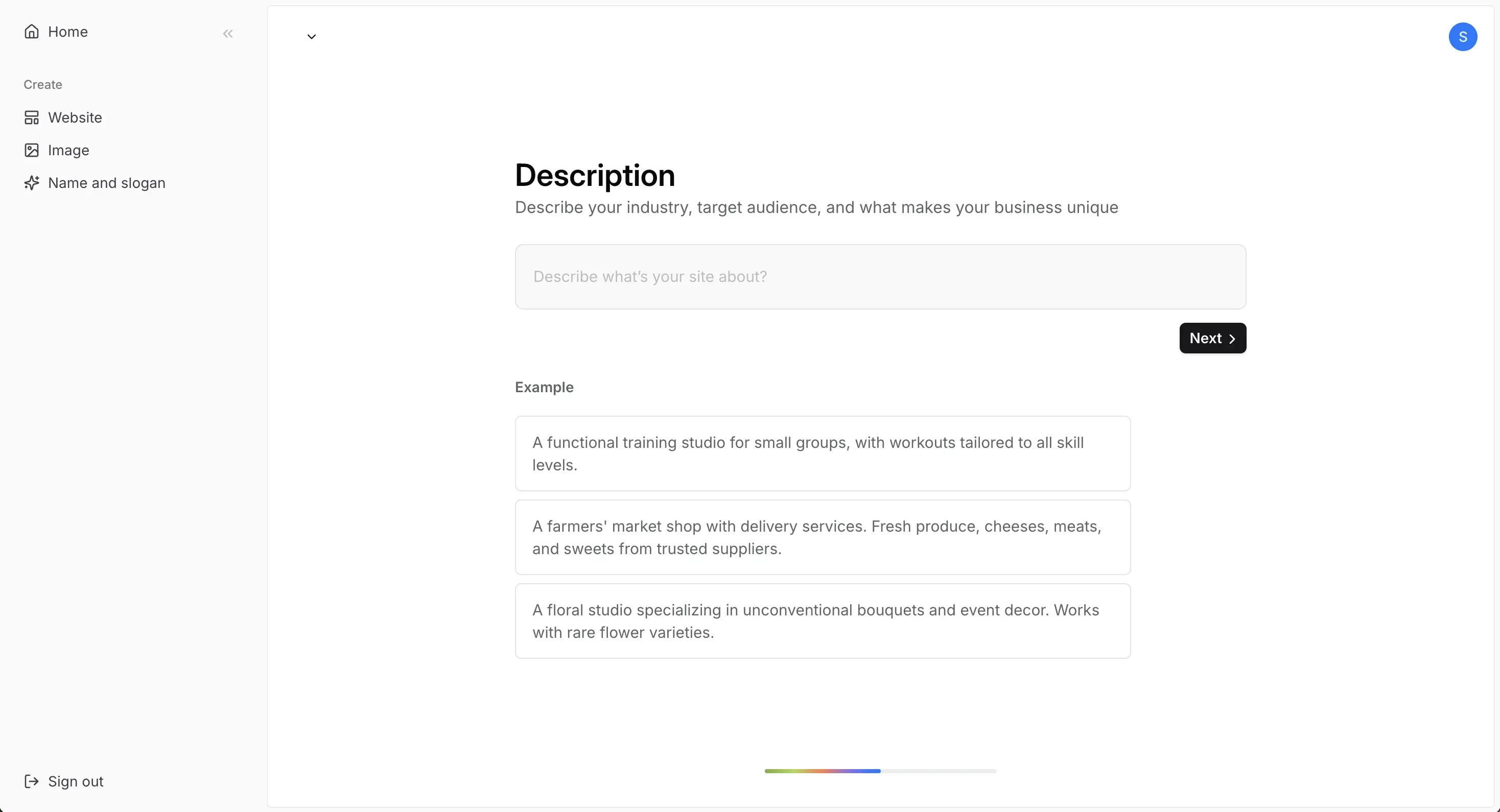
- Describe your landing page: Write a short, clear prompt describing what your landing page is for. Be specific, as this helps Codesi generate better content and layout. Example Prompt: Landing page for a spring collection sale with 25% off all women’s styles. Include headline, short body copy, CTA button, and mobile-optimized layout.

- Choose your design style and brand colors: Pick from a list of design styles like minimal, bold, modern, or editorial. You can also enter your preferred theme color. Example Prompt: “Clean and modern style using beige and pastel green.”

- Generate your page: Click the “Generate” button. Within 30–60 seconds, Codesi creates a full landing page with:
- A clear headline and subhead
- Branded visuals
- Features or product highlights
- Testimonials or trust signals
- A bold call-to-action

- Edit and customize: Use the simple editor to change any text or upload your own images, tweak colors, spacing, or fonts, and adjust layout sections if needed
- Publish your page: Click “Publish” to make your page live instantly. All Codesi pages are mobile-responsive by default and ready for traffic.
Ready to skip the setup and launch faster?
Sign up on Codesi to generate a high-converting Shopify-style landing page in minutes.
FAQ
Do I Need a Premium Theme to Create a Landing Page on Shopify?
Not necessarily. Some free Shopify themes include customizable sections you can use for landing pages. That said, premium themes often come with cleaner layouts and better mobile performance.
How Long Does It Take to Build a Landing Page on Shopify?
If you’re using the built-in editor, expect to spend 2–4 hours on setup, design, and copywriting. If you’re installing apps or using custom templates, it can take even longer.
What Makes Codesi Different from Shopify’s Native Tools?
Codesi builds your landing page from a short prompt. It includes layout, copy, visuals, and conversion elements. It’s ideal if you want to go live quickly without sacrificing quality.
Is Codesi Free to Use?
Yes. You can generate and edit up to three landing pages for free. There’s only one paid plan if you want to publish, export, or unlock premium features.
Create your website with AI today
Codesi is a platform where you can make a website in 3 minutes.
No coding, no designers, no hassle - just AI.