Back to blog
How to Create a Waitlist on Shopify: A Comprehensive Guide
Explore how to create a waitlist on Shopify to recover lost sales, capture demand, and notify customers automatically when products return to stock.

Jan 8 2026

When products sell out, 70% of shoppers switch to competitors or alternative brands rather than waiting for restocks. That lost sale often becomes a permanently lost customer, especially if they discover your competitor has better availability.
This is where waitlists come into play.
However, Shopify doesn't include automatic waitlist functionality. When inventory hits zero, the platform displays "Sold Out" instead of "Add to Cart," and customers have no way to request restock notifications without additional setup.
This guide explains how to create a waitlist on Shopify manually, when waitlists are most useful, and how you can automate the whole process.
Key Takeaways
- Waitlists recover lost revenue
Back-in-stock emails convert at significantly higher rates than standard marketing campaigns because they target customers who have already demonstrated purchase intent.
- Manual waitlists break down at scale
Tracking spreadsheets and sending individual emails becomes unsustainable as signup volume grows, making automation worthwhile for busy stores.
- Choose apps based on your inventory complexity
Stores with multiple product variants need sophisticated tracking, while simple catalogs benefit from straightforward, unlimited notification systems.
- Setup requires minimal time investment
Install your chosen app, customize the button appearance, design notification emails, test the full workflow, then monitor conversion performance.
- Speed matters for time-sensitive launches
Codesi generates complete landing pages quickly, capturing demand for pre-launch products rather than managing stockout notifications for existing inventory.
What Is a Shopify Waitlist, and Why Do You Need One?
A Shopify waitlist captures customer email addresses when products are out of stock or not yet available. Customers enter their contact information through a signup form on your product pages, and you receive their details for notification when items return. This system turns stockouts into future sales opportunities.
Waitlists address three revenue problems that every Shopify store faces during stockouts:
- Recover lost sales: Customers who can't buy what they want typically leave and shop elsewhere. Waitlists bring them back by notifying them when products become available again.
- Measure hidden demand: Without waitlists, you can't track how many customers wanted out-of-stock products. Signup data reveals which products have waiting customers and indicates demand for specific variants, such as sizes or colors.
- Keep customers engaged: Waitlists maintain relationships with customers instead of sending them to competitors.
When Waitlists Deliver the Best Results
Different situations benefit from waitlist functionality in specific ways. Here are use cases where waitlists deliver the best results:
- Product launches and preorders: Build an audience with waitlist landing pages before release dates. By doing so, you will launch with interested customers already ready to buy.
- Limited-edition items: Capture demand that exceeds supply and keep customers engaged for potential restocks.
- Seasonal products: Measure actual demand during peak periods, and identify which items need larger orders next season.
- Consistently popular items: Prevent customer frustration from recurring stockouts while collecting data that signals when to increase inventory levels.
- High-value products: Keep interested customers engaged during extended restock periods.
How to Set Up Your Manual Waitlist on Shopify
You can run a basic waitlist on Shopify without using an app. This works best for small stores or products that only sell out occasionally. Follow these steps:
Step 1: Add A Signup Form To Product Pages
Create a simple waitlist page with a contact form:
- Go to Online Store → Pages → Add page
- Add a contact form
- Clearly state which product the waitlist is for
Link this page from out-of-stock product pages. Many stores replace the "Add to cart" button with a "Join the waitlist" link when inventory hits zero.
Step 2: Track Waitlist Signups
Create a spreadsheet with columns for email addresses, product names, variants, and signup dates. This gives you a clear record of who's waiting for each product.
Or use Shopify's customer list and tag customers by product name (example: "Waitlist - Blue Sneakers Size 10"). Tags let you filter and email specific groups when those variants restock.
Step 3: Send Restock Notifications
When products return to inventory, compose an email through Shopify Email or your email platform. Include the product name, image, direct link to the product page, and purchase instructions.
Send to customers in your spreadsheet or tagged customer segment.
Step 4: Remove Notified Customers
Delete customers from your waitlist tracking after sending notifications to prevent duplicate alerts and keep lists current.
Manual Waitlist Alternatives: 3 Top Shopify Waitlist Apps Compared
Manual waitlists work for occasional stockouts, but spreadsheet tracking becomes unmanageable once you receive 50 daily signups across multiple products. You also can't track which variants customers want, meaning that everyone will be notified even if only one size restocks.
Third-party apps solve these problems through automation. They track signups by specific variants, send instant notifications when inventory updates, and show which products have the most demand.
The three options below have different strengths depending on your inventory complexity and notification preferences.
Swym

Swym targets stores with high SKU volumes and fast-moving inventory. The app handles variant-level signups so customers receive notifications for specific sizes or colors rather than generic product alerts.
Best For: Stores with multiple product variants and high inventory turnover
Key Features:
- Variant-level waitlist signups: Let customers sign up for specific sizes, colors, or product options instead of generic alerts.
- Multi-channel notifications: Send restock alerts via email, SMS, or push notifications when items return.
- ESP integration: Connect with Klaviyo, Mailchimp, and other platforms for automated email campaigns.
- AI product recommendations: Show in-stock alternatives when customers view out-of-stock products.
- Demand analytics: Track which products have the most waitlist signups to make informed restocking decisions.
Pricing: A Free plan is available. Paid plans start at $19.99 and scale with monthly sessions and store traffic.
STOQ

STOQ combines waitlist functionality with preorder capabilities. You can accept partial payments for out-of-stock items or let customers join waitlists, depending on your inventory strategy.
Best For: Stores that want to capture revenue before restocking through preorders
Key Features:
- Preorder and waitlist modes: Accept payments for upcoming inventory or collect emails for restock notifications.
- Partial payment options: Let customers place deposits on preorders to secure their purchase.
- Automatic restock alerts: Send email and SMS notifications when products are back in stock.
- Multi-location support: Manage waitlists across different warehouses or store locations.
- Klaviyo sync: Automatically add waitlist signups to your email marketing platform.
Pricing: STOQ has a free plan available, and paid plans start from $10/month.
Notify Me!

Notify Me! offers comprehensive notification options across multiple channels. The app sends alerts via email, SMS, push notifications, and WhatsApp to reach customers through their preferred method.
Best For: Stores wanting multiple notification channels and extensive customization options
Key Features:
- Multi-channel notifications: Reach customers automatically via email, SMS, push notifications, and WhatsApp.
- Preorder with discounts: Accept preorders with partial payments and offer discounts to incentivize early purchases.
- Wishlist functionality: Let customers save multiple products and receive notifications when any become available.
- FOMO counters: Display "only X left" alerts to create urgency on low-stock items.
- B2B preorder support: Manage separate preorder catalogs for wholesale customers alongside retail.
Pricing: Notify Me! does not offer a free plan, and paid plans start at $29.9/month.
How to Set Up a Waitlist via Third-Party App: Step-by-Step
The time it takes to set up a waitlist on Shopify depends on your customization needs. The process follows the same pattern regardless of which app you choose.
Step 1: Choose and Install a Waitlist App
Visit the Shopify App Store from your admin dashboard by clicking Apps in the left sidebar, and then selecting "Search the App Store." Search for waitlist or back-in-stock apps to browse available options.
Review app features, pricing, and ratings before selecting one. Install your chosen app by clicking "Add app" or "Install" on the app listing page. Shopify will prompt you to authorize the app's permissions, which typically include access to products, inventory, and customer data.
Once the installation is completed, the app will appear in your Shopify admin Apps section.
Step 2: Configure Your Waitlist Button
Open the installed app from your Shopify admin, and navigate to the button customization section. Most apps include an editor that lets you preview changes before publishing.
Customize button appearance:
- Choose button text like "Notify Me," "Join Waitlist," or "Get Restocked"
- Match button colors and style to your store's branding
- Select button position on product pages (typically below the "Add to Cart" area)
Set display rules:
- Configure the button to appear only when products reach zero inventory
- Use product tags to define which products show waitlist buttons
- Choose whether to display buttons for specific variants
Preview the button on mobile devices to ensure it displays correctly and is easy to tap on small screens.
Step 3: Design Your Notification Emails
Navigate to the email settings in your app dashboard to control what customers receive when products restock.
Create your email template:
- Write a clear subject line: "[Product Name] Is Back in Stock" or "Your Waitlisted Item Just Restocked"
- Keep the email body brief with the product name, image, and a clear call-to-action button
- Link the button directly to the product page
Configure notification settings:
- Set immediate notifications for fast-selling items or batch notifications to control timing
- Determine minimum inventory levels that trigger notifications to avoid alerting customers when only one or two items restock
- Enable follow-up reminders if your app offers them
Send test notifications to your own email to verify formatting, links, and image display on both desktop and mobile devices.
Step 4: Test Your Waitlist
Set a product to out-of-stock in your Shopify admin by setting inventory to zero. If "Continue selling when out of stock" is enabled in your product settings, disable it (waitlist apps require products to show as unavailable).
Visit the out-of-stock product page on your live store. The waitlist button should appear automatically. Click on the button, and sign up using your email address.
Restore inventory for the test product by setting the quantity to one or higher. Check your email inbox for the back-in-stock notification; confirm the email displays correctly and links to the right product page.
Step 5: Monitor and Optimize Performance
Access your app dashboard to review waitlist analytics:
- Total waitlist signups per product
- Email open rates
- Click-through rates from email to product page
- Conversion rates from notification to purchase
Use this data when making inventory decisions, and adjust email subject lines, button placement, or notification timing based on performance metrics.
Skip the Waitlist: Build Landing Pages That Convert with Codesi
Waitlists work when products are temporarily unavailable; they help recover demand after the stock runs out.
But some launches don't involve inventory at all. If you're validating a new product, collecting interest before manufacturing, or selling services, there's nothing to restock. In those cases, an inventory-based waitlist adds friction.
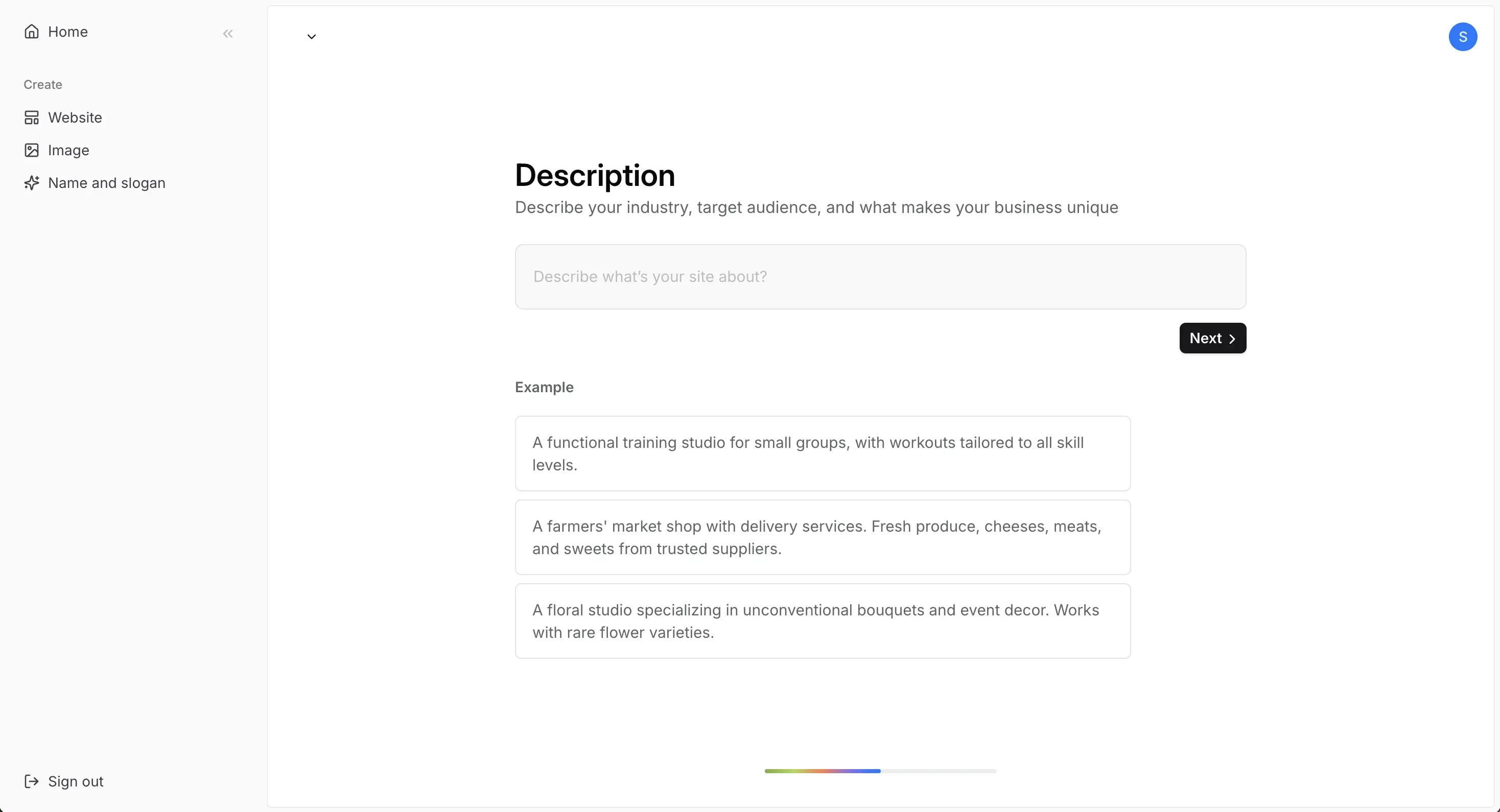
Codesi is ideal for these situations. It generates complete landing pages in minutes, with built-in lead capture, so you can start collecting interest as soon as the idea is ready. Instead of configuring waitlist logic, you can publish an optimized landing page and see real demand immediately.
While waitlist apps need form setup, email templates, and notification schedules, Codesi handles everything automatically. You describe what you're launching, and it builds the page for you.
Ready to test your idea without the setup hassle?
Try Codesi for free and generate your first landing page in minutes.
Create your website with AI today
Codesi is a platform where you can make a website in 3 minutes.
No coding, no designers, no hassle - just AI.