Back to blog
From Scratch to Live Site: How to Build a Website Using HTML
Learn how to make a website using HTML as you build a real structure, organize files, add content, and create a layout that works on every device.

Nov 28 2025

Over 1.1 billion websites exist today, and 97% of them use HTML. Learning to write it yourself means understanding the code that powers everything, from personal blogs to complex web applications.
Building a website with HTML gives you direct control over every element on your page. You can write tags, refresh your browser, and immediately see your work take shape without hidden templates or platform restrictions limiting what you can create.
This guide will teach you how to build a website using HTML.
Key Takeaway
- Knowing HTML helps you understand how websites work behind the scenes
You will be able to spot what’s broken, identify why certain layouts behave the way they do, and communicate clearly with developers and support teams.
- Organizing your files from the start prevents issues later
A clear folder structure for your HTML, CSS, and images keeps your project easy to manage and scale.
- Semantic HTML improves accessibility and search visibility
Using descriptive tags makes your content easier for browsers and assistive tools to read.
- Browser tools help you learn and debug in real time
Inspecting your site as you build teaches you how different changes affect layout, helping you build with more confidence.
- Codesi generates complete HTML sites instantly
If you need to launch a polished site quickly, Codesi builds the structure, styling, and hosting for you based on a simple description.
Why Should You Learn HTML When Website Builders Exist?
Website builders have made launching sites faster and more accessible, but learning HTML makes you better at using them.
Learning how to build a website using HTML allows you to:
- Customize generated code when needed: Adjust specific elements or add features that go beyond a builder's standard options.
- Understand what's happening behind the scenes: Know why certain design choices affect loading speed, mobile display, or search visibility.
- Troubleshoot faster when issues occur: Identify whether a problem is in your content, the builder's code, or an integration.
- Communicate effectively with support or developers: Describe technical issues accurately and understand solutions when working with teams.
- Make informed tool choices: Evaluate which builder fits your needs by understanding what each platform actually generates and how it handles structure.
- Combine tools strategically: Use builders for speed while coding manually when you need complete control or a unique functionality.
Steps to Build a Website Using HTML
The following steps walk you through building a complete website from scratch so you understand exactly how each piece works.
1. Understand the Basics of HTML Structure
Before writing content or adding images, you need to understand what makes up a basic HTML page.
Browsers read your code from top to bottom, using tags to identify what each part of the page represents. Master these core elements, and you'll be able to construct pages with multiple sections, navigation menus, and organized content hierarchies.
Essential HTML Tags to Know
Every HTML document uses a standard set of tags that tell browsers how to display content. These tags open with angle brackets and close with a forward slash, like <p>Your text here</p>.
Here are the essential tags to know:
- <html> wraps your entire page
- <head> contains information about your site, like the title and character encoding
- <body> holds all visible content
- <h1> through <h6> create headings
- <p> defines paragraphs
- <div> marks sections
- <a> creates links
2. Set Up Your Project Folder and Files
Proper file organization prevents broken images, missing pages, and confusing paths as your site grows. Even small projects benefit from a tidy structure because browsers rely on these paths to locate your content.
Here's how to organize your files:
- Create a main folder named my-website
- Inside it, add your main file: index.html
- Add an images folder for photos, icons, and graphics
- Add a CSS folder for future styling files
- Optional: Add a js folder if you plan to add scripts later
Creating this structure from the beginning makes it easier to add styles, link images, or create additional pages without having to move files around. You’ll spend less time fixing “file not found” errors and more time building your site.
3. Build the HTML Skeleton for Your Home Page
With your folders organized, create the foundational markup for your page. This skeleton outlines where content will appear and helps the browser understand how to read it.
Your page now has a header for navigation, a main content area for your information, and a footer for additional details. As you continue building, replace placeholders with actual text, images, links, and sections.
Hint: This skeleton structure is the same foundation that builders like Codesi generate automatically, but understanding it yourself means you can customize every part of the layout as needed.
4. Test Your Page in a Browser
Before adding more content, make sure your skeleton displays everything correctly. Right-click your index.html file, select "Open with," and choose your browser. Your page should appear instantly, showing exactly what visitors will see when they land on your site.
This preview step catches problems early—broken tags appear as missing sections, and unclosed elements cause unexpected layouts. Testing after each major change means you can spot exactly what caused an issue instead of debugging later.
Use Browser Developer Tools to Debug Faster
Press “F12” or right-click and select "Inspect" to open your browser's developer console. This panel reveals:
- Errors in red that explain what broke and which line caused it
- Element highlighting that shows which HTML tags create which visible sections
- Live editing that lets you test CSS changes before writing them into your actual file
Save your HTML file, refresh the browser, and watch your changes appear. This instant feedback loop is what makes HTML so practical.
5. Add Content Using Semantic HTML
Once your skeleton is in place, fill your page with content using tags that describe what each section represents. Semantic tags help browsers, search engines, and assistive technologies understand the purpose and hierarchy of your content.
Use these semantic tags to structure your content:
- <header> Contains your site's banner, logo, and main navigation
- <nav> Wraps navigation menus and link lists
- <main> Holds the primary content unique to this page
- <article> Defines independent, self-contained content like blog posts or news stories
- <section> Groups related content together under a common theme
- <aside> Contains supplementary information like sidebars or related links
- <footer> Holds copyright notices, contact information, and secondary navigation
Using these descriptive tags instead of generic <div> elements helps search engines understand your content hierarchy and improves accessibility for screen readers.
6. Insert Images, Links, Forms, and Buttons
With your semantic structure in place, you should add interactive elements that engage visitors and enable actions. Images provide visual context, links connect to additional resources, forms collect user input, and buttons trigger specific actions.
Clear labels, meaningful alt text, and concise link wording help users understand what each element does without extra explanation. Good markup ensures these elements behave correctly on different devices.
7. Style Your HTML with Basic CSS (Optional but Recommended)
At this point, your page has structure and content, but it may still look plain. CSS adds layout, colors, spacing, and typography, making your site more visually consistent. Even a few simple rules can enhance the overall feel of your page.
To use your stylesheet, first create a CSS file inside your “CSS” folder and name it “styles.css.” Then link it to your HTML file inside the <head>:
A few basic CSS properties can significantly improve your site's appearance:
- color changes text color
- background-color sets element backgrounds
- font-size adjusts text size
- font-family changes typefaces
- margin adds space outside elements
- padding creates space inside elements
- text-align centers or aligns text
- border adds visible edges around sections
8. Make Your Site Work on Mobile Devices
More than 60% of website visits happen on mobile devices. If your site breaks on mobile, you are losing the majority of visitors before they read a single word.
Responsive design ensures your content adapts to any screen size without requiring separate mobile versions. Two simple changes make this happen.
Add the Viewport Meta Tag
Place this line inside your <head> section:
<meta name="viewport" content="width=device-width, initial-scale=1.0">
This tells mobile browsers to scale your page properly, rather than shrinking it and forcing users to pinch and zoom.
Use Flexible Widths Instead of Fixed Pixels
When sizing elements in your CSS, use percentages instead of fixed pixel values:
Instead of this:
.container {
width: 800px;
}
Use this:
.container {
width: 90%;
max-width: 800px;
}
Percentage-based widths let content shrink or expand based on screen size. The max-width property prevents your layout from stretching too wide on large monitors.
Test on Actual Devices
Open your site on your phone or tablet to see how it actually performs. Browser developer tools include mobile preview modes (press “F12”, then click the phone icon), but real devices reveal issues that simulators may miss, such as tap target sizes and actual loading speeds.
As you advance, CSS media queries let you apply completely different styles at specific screen widths, but these two foundational changes already make your site functional on mobile devices.
9. Publish Your Site
Once your page is built and styled, the final step is to make it accessible on the internet. Publishing turns your local project into a live website that anyone can visit through a link. You can do this with hosting platforms that store your files online and serve them to visitors when they enter your URL.
A simple and free way to publish a basic HTML site is via GitHub Pages. Here is a quick process you can follow:
Upload Your Project
- Create a GitHub account
- Start a new repository
- Upload your website folder and commit your files
Enable Hosting
- Go to your repository settings
- Find the “Pages” section
- Select the main branch as the source
- Save and wait for GitHub to generate a link
Visit Your Site
- Copy the link GitHub provides
- Share it like a normal website URL
Naming your main file index.html matters because web servers automatically recognize it as the homepage. As your site grows, you can replace files, add pages, or switch to paid hosting without changing how basic HTML works.
Skip the Manual Work and Build Your Website Fast with Codesi
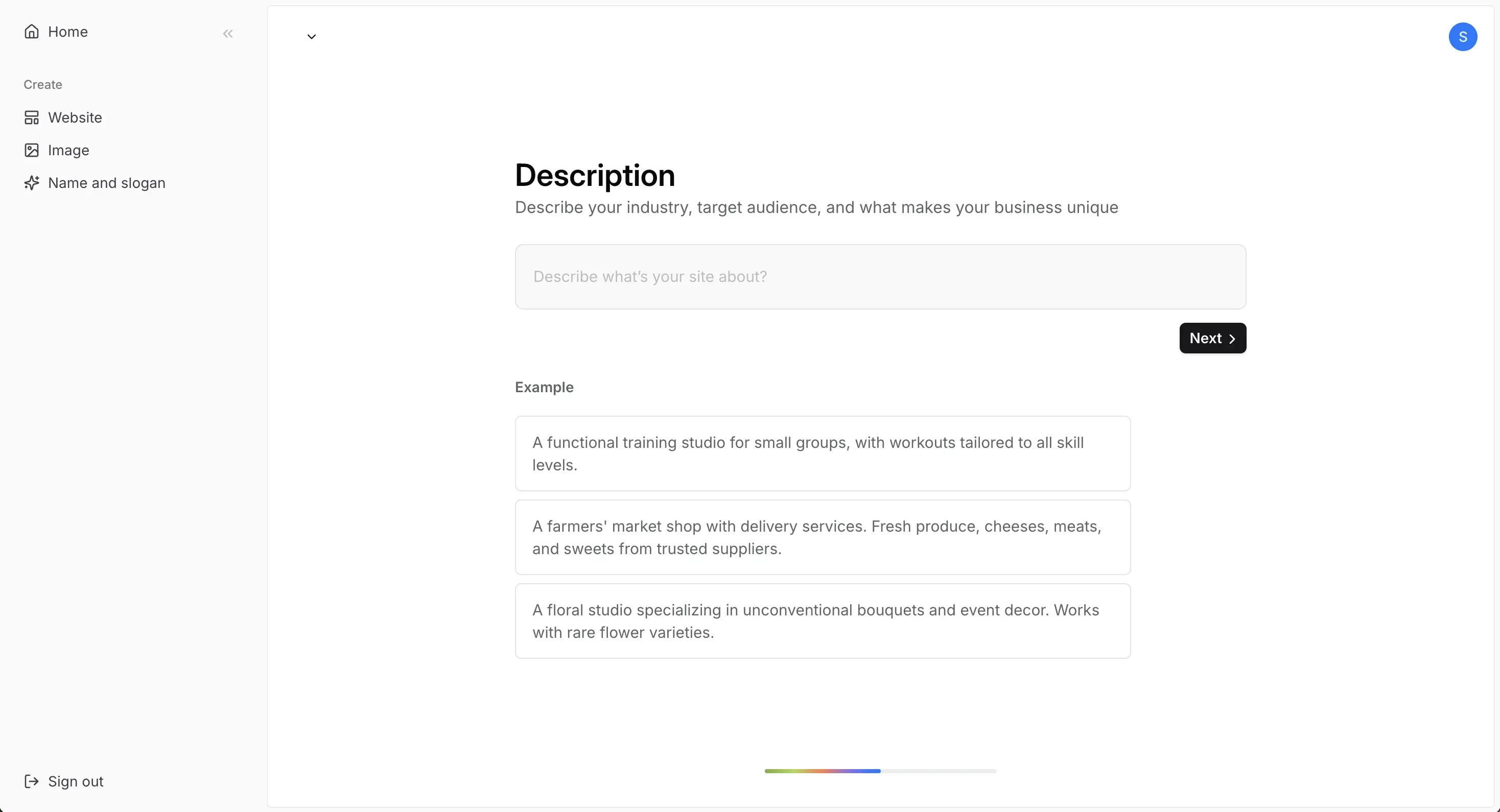
You don't need to build manually every time just because you understand how it works. Codesi generates complete HTML websites from simple text descriptions. You explain what your site needs, and the platform writes the code, applies styling, sets up hosting, and publishes everything in minutes.
What Codesi handles automatically:
- Complete HTML structure with semantic tags already in place
- CSS styling that works across all devices without media query adjustments
- Responsive layouts tested on mobile, tablet, and desktop
- Hosting configuration and SSL certificates for secure connections
- File organization with proper paths that prevent broken links
You can still edit everything, including generating logos and AI images. Codesi lets you change text, adjust colors, rearrange sections, or go into the code itself. The difference is that you start with a working site instead of a blank file.
Ready to build without manual work?
Start with Codesi for free and launch your site in minutes. No credit card required.
Create your website with AI today
Codesi is a platform where you can make a website in 3 minutes.
No coding, no designers, no hassle - just AI.